
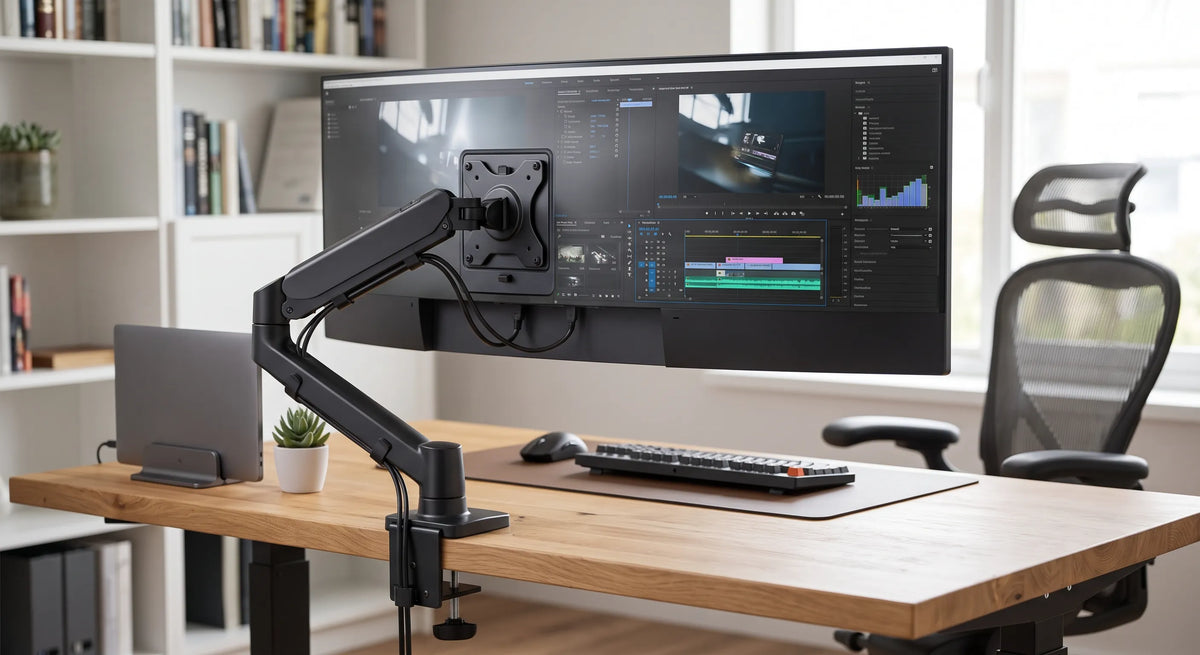
Ultrawide monitors give you more screen space for gaming, creative work, coding, video editing and everyday productivity. However, their larger size and heavier construction mean that choosing the right monitor arm for ultrawide monitor setups requires more care than mounting a standard display.
A regular monitor arm may look suitable at first, but it can struggle with the extra weight and depth of a large curved screen. The wrong arm may slowly drop, tilt forward or limit how far you can position the monitor from the wall.
Before choosing a mount, it is important to check the monitor weight, screen size, VESA pattern, desk construction and the adjustment range you need. You can also browse the monitor arms available from ScreenMounts to compare options designed for different screen sizes and workstation layouts.
Why Ultrawide Monitors Need the Right Monitor Arm
An ultrawide monitor places different demands on a mounting arm compared with a smaller conventional monitor.
The screen is wider, usually heavier and may have a curved panel that places its centre of gravity further away from the mounting point. This creates more leverage on the arm.
A suitable ultrawide monitor arm must therefore provide enough strength to support the monitor while keeping the screen stable at the selected height and angle.
Screen size alone should not determine whether an arm is suitable. The actual monitor weight and the weight capacity of the arm are more important.
For example, the ScreenMounts A6 is designed for monitors from 27 to 50 inches and supports weights from 2 kg to 18 kg. It also supports curved and ultrawide displays, making it one option for larger screens when the monitor specifications fall within those limits.
Check the Monitor Weight First
The first specification to check when selecting a monitor arm for ultrawide monitor use is weight capacity.
Find the weight of your monitor without its original stand. You can usually locate this information in the manufacturer specifications or product manual.
The monitor should fall comfortably within the supported weight range of the arm. Avoid choosing an arm where your monitor sits at or beyond the maximum stated capacity.
A stronger arm provides more reliable support for a large display and gives the adjustment mechanism enough resistance to hold the monitor at the correct height.
This is especially important for a heavy duty monitor arm because ultrawide displays can place significant pressure on the tilt joint.
For larger displays, the A6 monitor arm for 27 to 50 inch monitors supports up to 18 kg and includes adjustable tilt, swivel, rotation and height positioning.
For even larger screens, the F6 monitor arm for ultrawide and curved monitors supports compatible displays from 32 to 60 inches with a weight capacity of up to 20 kg.
Check Screen Size as Well as Weight
Weight is essential, but monitor size still matters.
An arm might technically support the weight of your screen but may not provide enough reach or clearance for a very wide monitor.
Large ultrawide monitors need enough space to move backwards, forwards and sideways without the screen hitting a wall or another display.
This becomes especially important for curved monitors because the sides of the screen extend towards the user.
Before buying an arm, check:
-
Supported monitor size
-
Maximum monitor weight
-
Maximum arm extension
-
Height adjustment range
-
Tilt range
-
Swivel range
-
Rotation range
A wide adjustment range gives you more freedom to position the centre of the ultrawide display directly in front of your normal sitting position.
If you are unsure which specifications matter, ScreenMounts also provides a guide explaining how to know what monitor arm to buy based on screen size, weight, VESA compatibility and desk setup.
Confirm VESA Compatibility
VESA compatibility determines whether your monitor can physically attach to the arm.
Most monitor arms use standard mounting patterns such as:
|
VESA pattern |
Common use |
|
75 x 75 mm |
Smaller and medium monitors |
|
100 x 100 mm |
Many standard and ultrawide monitors |
|
Larger patterns |
Some larger displays |
The VESA mounting holes are normally located on the rear of the monitor.
Before purchasing an arm, check your monitor specifications and make sure its mounting pattern matches the VESA plate supplied with the arm.
The Video Electronics Standards Association develops standards used across the display industry, including mounting interfaces for displays. You can learn more through the official VESA standards information.
ScreenMounts also explains the mounting system in its guide to what a VESA mount is.
Many ScreenMounts monitor arms designed for larger monitors support 75 x 75 mm and 100 x 100 mm VESA patterns. However, always check both the monitor and arm specifications before installation.
Choose Between Gas Spring and Mechanical Spring Arms
The movement mechanism affects how easily you can adjust a large monitor.
Gas Spring Monitor Arms
A gas spring monitor arm uses internal pressure to help balance the weight of the screen.
Once the tension is adjusted correctly, you can usually raise or lower the monitor with relatively little effort.
This can be useful if you regularly change your screen position throughout the day.
Mechanical Spring Monitor Arms
Mechanical spring systems use a spring mechanism rather than a gas cylinder to balance the display.
They can also provide smooth movement and strong support for heavier screens.
The most important factor is not simply whether the arm uses a gas spring or mechanical spring. The weight range must match your monitor.
If the monitor is too heavy for the mechanism, the arm may gradually sink.
If the screen is too light, the arm may rise when you try to position it lower.
Look for Strong Tilt Support
Tilt strength is especially important for ultrawide and curved monitors.
Because a large screen extends further from the VESA mounting point, additional force is placed on the tilt mechanism.
A weak tilt joint can cause the monitor to slowly face downwards even when the main arm is strong enough to support the overall weight.
When comparing monitor arms, check both the maximum weight rating and the design of the tilt joint.
A heavy duty monitor arm designed for larger screens should allow the monitor to remain stable after you set the viewing angle.
The A6, for example, provides tilt adjustment along with swivel, rotation and height movement for compatible monitors.
Consider the Arm Extension
Ultrawide monitors often need more positioning space than regular screens.
An arm with sufficient extension allows you to bring the monitor forward when required or move it further back when you want more viewing distance.
The correct viewing distance depends on the individual user, monitor size and work being performed.
The Canadian Centre for Occupational Health and Safety notes that viewing angle and viewing distance both affect comfortable monitor positioning. It also specifically advises considering additional distance when using a wide monitor because the user may otherwise need more neck movement to view different areas of the screen.
You can review its monitor positioning guidance for additional ergonomic information.
Check Your Desk Mounting Options
Most monitor arms attach to a desk using either a clamp or a grommet mount.
Desk Clamp
A desk clamp attaches to the edge of the desktop.
This is often the easiest installation method because you do not usually need to drill a hole into the desk.
Before installation, check:
-
Desktop thickness
-
Available space underneath the desk
-
Strength of the desktop
-
Position of the desk frame
-
Clearance from the wall
A large ultrawide monitor places more force on the mounting point, so the desk must be strong enough to support both the arm and monitor.
Grommet Mount
A grommet mount passes through an existing cable hole or another suitable mounting hole in the desktop.
This option can provide a secure installation while allowing more flexibility in where the arm is positioned.
Several ScreenMounts arms, including the A6 and F6, provide both clamp and grommet mounting options.
Position the Ultrawide Monitor Correctly
A monitor arm is most useful when it allows you to position the screen comfortably for your normal working posture.
Comcare identifies screen position, viewing angle and viewing distance as important considerations when setting up a computer workstation.
Its computer workstation guidance provides additional information about monitor and workstation setup.
As a practical starting point, position the monitor directly in front of you rather than forcing yourself to turn your head for long periods.
The Occupational Safety and Health Administration also recommends positioning the monitor directly in front of the user, with the top of the display at or slightly below eye level.
You can refer to its computer monitor ergonomics guidance when adjusting your workstation.
For a large ultrawide screen, you may need to move the display slightly further away so that the complete screen can be viewed comfortably without excessive head movement.
ScreenMounts also provides guidance on finding the optimal screen height and creating an ergonomic desk setup.
Think About Cable Management
An ultrawide monitor may use several cables, including power, DisplayPort, HDMI and USB connections.
Without cable management, these cables can hang from the screen and reduce the amount of movement available from the monitor arm.
Look for an arm with integrated cable channels or cable clips.
Leave enough slack in each cable for the monitor to move through its normal adjustment range without pulling on the connectors.
This is especially important if you frequently move the monitor forwards or backwards.
A clean cable route also helps keep more of the desktop available for your keyboard, mouse and other equipment.
Mayo Clinic recommends organising the workstation so the monitor can remain directly in front of the user at a comfortable distance.
Its office ergonomics guide provides further guidance for arranging a workstation.
Can You Use a Regular Monitor Arm for an Ultrawide Monitor?
You can use a regular monitor arm only if the monitor falls within the arm specifications.
Do not assume that an arm is suitable simply because your ultrawide monitor uses a common 100 x 100 mm VESA pattern.
You still need to check:
-
Monitor weight without the stand
-
Supported screen size
-
VESA compatibility
-
Tilt strength
-
Maximum arm extension
-
Desk mounting requirements
If any of these specifications are outside the limits of the arm, choose a stronger model.
A smaller monitor arm such as the ScreenMounts F80 G supports monitors from 17 to 30 inches and weights from 2 kg to 9 kg. That may suit standard monitors, but larger ultrawide screens will often require a model with a greater weight and size capacity.
Is a Heavy Duty Monitor Arm Better for an Ultrawide Monitor?
For larger or heavier ultrawide monitors, a heavy duty monitor arm can provide additional support and stability.
However, choosing the highest weight capacity available is not automatically the best solution.
The monitor still needs to fall within the supported weight range of the adjustment mechanism.
A good match allows the tension system to balance the display correctly while still allowing smooth height and angle adjustment.
The arm should also offer enough reach for your desk depth and enough tilt strength to keep the screen at your preferred angle.
What About Curved Ultrawide Monitors?
Curved monitors require the same basic checks as flat ultrawide monitors, but their depth makes correct arm selection even more important.
The centre of gravity can sit further away from the mounting plate, increasing pressure on the tilt joint.
Choose an arm that specifically supports the weight and screen dimensions of your curved monitor.
For example, the ScreenMounts F6 is designed for compatible flat, ultrawide and curved monitors from 32 to 60 inches and supports up to 20 kg.
Always confirm the specifications of your exact monitor before installation.
Monitor Arm for Ultrawide Monitor Buying Checklist
Before purchasing a monitor arm, use this checklist:
|
Check |
What to confirm |
|
Monitor weight |
Within the supported arm weight range |
|
Screen size |
Within the recommended monitor size |
|
VESA pattern |
Matches the arm mounting plate |
|
Tilt strength |
Suitable for a large or curved display |
|
Height adjustment |
Enough range for your sitting position |
|
Arm extension |
Suitable for your desk depth |
|
Desk mount |
Clamp or grommet fits your desk |
|
Cable management |
Enough space for power and display cables |
|
Movement |
Suitable tilt, swivel and rotation |
|
Desk strength |
Desktop can safely support the setup |
Checking these points before buying is much easier than discovering a compatibility problem during installation.
Choosing the Right Monitor Arm for Your Ultrawide Setup
The best monitor arm for ultrawide monitor use is one that matches the screen rather than simply looking strong enough.
Start with the monitor weight and VESA pattern. Then check the supported screen size, tilt strength, arm extension and desk mounting method.
For larger displays, choosing an arm with the correct weight capacity and adjustment range can provide a more stable setup while giving you greater control over screen height, distance and viewing angle.
Once you know your monitor specifications, explore the ScreenMounts monitor arm range to compare mounting options for ultrawide, curved and standard monitors.
Share:
Vertical Monitor Setup: How to Position Your Screen Properly
TV Wall Mount Weight Limit: How Much Weight Can It Hold?